Part 18 — How I Run My Entire Digital Life on a Raspberry Pi: A Self-Hosted Messenger Hub That Refuses to Sell You Out
Table of Contents
Your taskbar looks like a casino, your “free” Rambox keeps nudging you toward Pro, and your config lives in someone else’s cloud. Time to fix all three.
Let’s start with a confession. For years, my desktop’s most-used app wasn’t my IDE, my browser, or even my terminal. It was Rambox.

If you’ve never used it: imagine a single Electron window with a left-hand sidebar full of icons, and each icon is a logged-in tab to a different messenger or service. Slack for work. WhatsApp for family. Telegram for the group chat that never sleeps. Discord for the side project. Teams because somebody insists. Gmail. Outlook. LinkedIn DMs. That one community forum you actually like. Add Matrix (Part 14, naturally), and your taskbar becomes a casino dashboard unless you have one window that holds all of it.
Rambox solved that. Beautifully. Until it didn’t.
 Rambox — source: https://rambox.app/blog/best-productivity-apps-for-entrepreneurs/
Rambox went freemium — and not in the gentle, gradual way most products do. In April 2022, the original open-source Community Edition was archived on GitHub, marked end-of-life by its own maintainer, with the repo banner now telling visitors to “update to the new version of Rambox.” That new version is a closed-source successor product with a Basic free tier, a Pro tier ($5–$7/month), and an Enterprise tier ($14/user/month). The Pro tier is genuinely well-engineered, to be fair to the team. But every time I opened it, the app felt less like a tool I owned and more like a billboard for the next upsell. The “Upgrade” button never went away. The cloud sync was non-negotiable. The privacy policy reserved a lot of room.
And then there’s the quieter limitation Rambox’s own pricing page does confirm if you scroll for it: on the free Basic plan, your account is only active on one device at a time. Log in on your work laptop and your home machine silently logs out. Log in at home in the evening and the work one drops. Pro raises the cap to three active computers — for $5–$7 a month, you can buy back the multi-device life CE used to give you for free. Whether by accident or by design, it’s the kind of friction that turns a tool you reach for into a tool you avoid.
I’m not against people getting paid for software. I’m against software that quietly turns my desktop into a billboard for its own upsell, and stores my config on hardware I can’t see.
So I went looking for a replacement. Specifically, one that ticked three boxes:
- Every feature free, in the binary, no premium tier nagging at me.
- The option to not have a backend server at all — or, if I wanted sync, the option to self-host the backend on my Pi.
- Open source under a license I actually like, with a community that ships releases.
That replacement turned out to be Ferdium. Apache 2.0, no premium tier, every feature unlocked by default, optional sync server you can run yourself in a Docker container small enough to barely register on a Raspberry Pi.
This post is the long, honest version of how Ferdium got here, where the privacy lines actually run, and how to host the whole thing on the same Pi that’s already running Pi-hole (Part 3), Vaultwarden (Part 5), Nextcloud (Part 6), Matrix (Part 14), and the encrypted-DNS-on-the-road setup from Part 17. By the end, you’ll have one Electron window that handles every messenger you use, an ad blocker baked in, no upsell modals, and a config that lives exclusively on hardware you own.
 One window to rule them all — and a Pi quietly running the only server it needs to talk to — image generated via Nano Banana
A short, slightly opinionated family history
To understand why Ferdium exists, you have to understand where it came from — and Rambox isn’t actually its ancestor. The two are constantly compared as “the same kind of app,” and they are, in the form factor sense. Under the hood, they come from completely different family trees with completely different trust models.
Let me walk both.
Rambox CE (2015–2022, Ramiro Sáenz). The product most people met first. Built on Electron, fully free and open source under GPL-3.0, designed exactly to do what we’ve been describing — one window, many web services. The CE actually shipped a respectable set of features in the free tier: master password, multi-computer sync (via Auth0), custom code injection, mute-per-service, don’t-disturb mode. Then in April 2022 the maintainer archived the CE repo, marked it end-of-life, and launched a new closed-source product simply called Rambox in its place — freemium, with Basic (free, one device), Pro ($5–$7/mo, three devices, workspaces, multi-login, custom apps), and Enterprise ($14/user/mo) tiers. The new product is what “Rambox” means today; the CE is a museum exhibit you can still download but probably shouldn’t run.
So that’s one branch of the tree. Now the other one — which is where Ferdium actually comes from.
Franz (2016, Stefan Malzner). Six months after Rambox, a Vienna-based developer launched Franz with the same form factor but a different philosophy. Franz was Apache 2.0, fully open source, every feature free. You signed up for a Franz account, added “services” (read: web wrappers around Slack, WhatsApp Web, Gmail, etc.), and that was it. It rapidly became the open-source darling of the messenger-aggregator world.
Then Franz 5 happened. Out came Franz Premium — and with it, artificial limits on the free version: only three services for free users, paid tiers for more, cloud sync paywalled, themes paywalled, and a constant nudge to upgrade. The codebase remained technically open, but the product was no longer aligned with the people running it for free. This is the part where the community said “we’re going to need a fork, please.”
Ferdi (2019, Vantezzen). A direct fork of Franz, with the explicit goal of putting the free features back in the free product. Ferdi removed the service limit, exposed advanced settings, and added a few quality-of-life bits Franz didn’t have. For a couple of years, this is what privacy-conscious people pointed friends to.
Then governance issues set in. Maintainer disputes, abandoned PRs, security updates that didn’t ship, a https://github.com/getferdi/franz repo that today is essentially a museum exhibit — archived since Jan 2021. The community needed another fork, with cleaner stewardship and a faster release cadence.
Ferdium (2021). A fork of Ferdi by a group of its former contributors who wanted modern Electron, regular releases, and Franz Premium-equivalent features unlocked by default. Apache 2.0, no premium tier, an AdonisJS server reimplemented and maintained in lockstep with the app. As of writing it ships with multi-account support per service, workspaces, unified notifications, advanced themes, master password, recipe sync, and — crucially — the ability to run without a server at all.
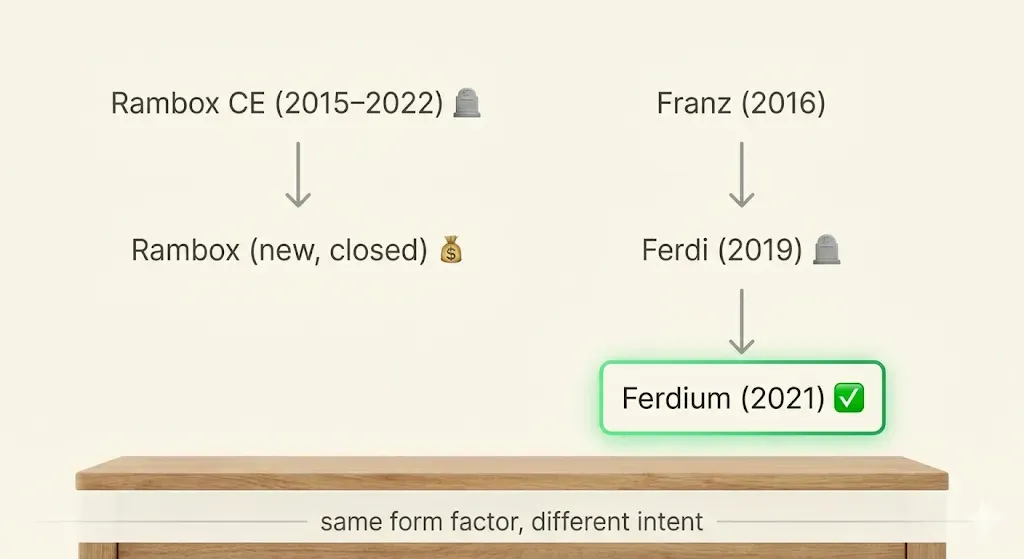 Two family trees, one form factor, completely different trust models — image generated via Nano Banana
The reason this matters isn’t historical trivia. It’s that when people say “Ferdium is like Rambox but free,” they’re technically right and architecturally wrong. Ferdium descended from a different lineage that started as a free, open community project, and has now had two consecutive forks specifically aimed at keeping it that way. Rambox descended from a project that has been steadily moving in the opposite direction for the better part of a decade. The form factor is the same. The intent is not.
The comparison, compressed
I’m not going to write a full feature grid because the differences fall on four axes; the rest is noise. All four points below are sourced from the projects’ own pages — see the links inline.
- License & maintenance status. Ferdium is Apache-2.0, actively developed, regular releases. The current Rambox is closed-source freemium. Its open-source ancestor Rambox CE was GPL-3.0 but was archived in April 2022 — the repo banner itself directs visitors to the new closed product.
- Concurrent devices. Per Rambox’s own pricing page: Basic (free) = 1 active session, Pro = up to 3 active computers. Ferdium imposes no device cap — your account can be live on every machine you own at once.
- Workspaces, multi-account, sync between machines. Free in Ferdium. On Rambox, all three are explicitly listed as Pro-tier features on the pricing page.
- Self-hosting. Ferdium publishes an official server image and the rest of this post is about running it. Rambox sync runs exclusively through Rambox’s cloud — there is no self-host path.
The other features people argue about — ad blocker, master password, custom CSS, themes — are either free in Ferdium or split across Basic/Pro in Rambox depending on which build you’re comparing against, and they’re where the noise lives. The actual decision is made on the four axes above. Self-hosting in particular is the difference between “privacy as a setting” and “privacy as an architecture.”
What exactly is the “Ferdium server”?
This is where most people get confused, and it’s worth slowing down here because it determines your entire threat model.
Ferdium-the-desktop-app is a fairly fat Electron client. It renders web views, runs recipes (essentially small JS bundles that customise the web view per service — adding notification badge readers, dark mode patches, etc.), manages sessions per service, and stores per-service data (cookies, localStorage, IndexedDB) locally on your machine in the Electron user-data directory. None of your actual chat content ever travels through a Ferdium server. When you message someone on Slack from inside Ferdium, the conversation goes from the embedded Chromium directly to Slack’s servers, exactly like it would in a normal browser tab. The server is not in that loop. Ever.
So what is in the server?
The Ferdium server is a small AdonisJS (Node.js) backend, originally cloned from Franz’s API surface and reimplemented cleanly by the Ferdium team. From the README and env.example, it does five concrete things:
- Account storage. Email, password hash, display name. That’s your Ferdium identity — completely separate from any of the services you connect.
- Service configuration storage. Which services you’ve added, in which order, in which workspace, with which icon, with which display name override. Per-service settings like “mute notifications”, “hibernate after 5 minutes”, “use custom URL”. Critically: not the cookies. Not the session data. Just the configuration.
- Workspace definitions. Which services live in which workspace, names, ordering.
- Recipe distribution. Serves recipe JSON to the desktop app so new recipes can ship without an app update. With
CONNECT_WITH_FRANZ=true, can also pull from the upstream Franz recipe library; withfalse, only your local recipes are served. - Import/export endpoints. Pull your full configuration as JSON; push someone else’s configuration into your account.
That’s it. Five things. No message logging, no telemetry, no session token relay, no centralized notifications service. The server is essentially a config-sync service with recipe distribution bolted on.
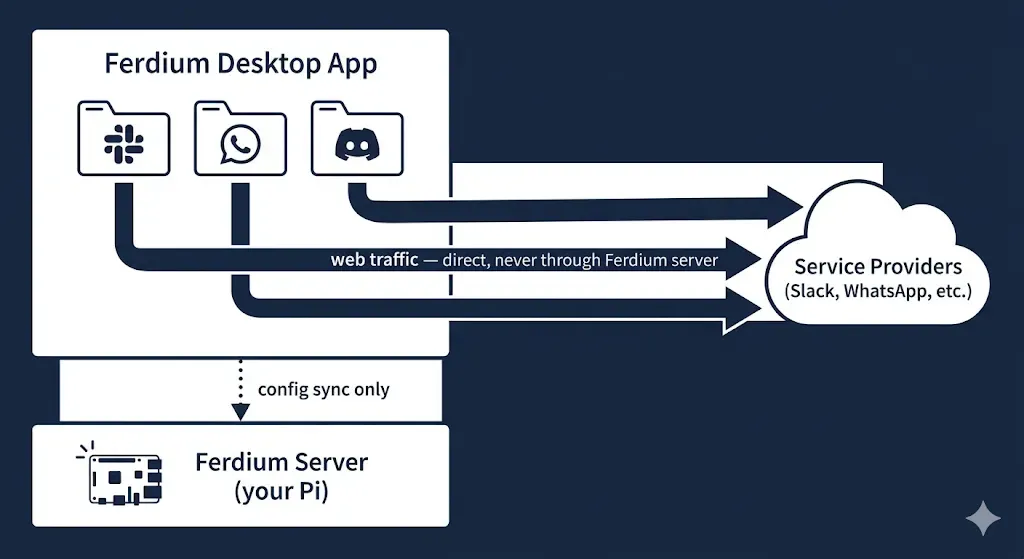 The server holds your settings. The services hold your messages. Two different paths, and they never meet — image generated via Nano Banana
So can you run Ferdium without any server at all?
Yes — and this is the bit the documentation underplays. On the welcome screen, in addition to “Login” and “Sign up”, Ferdium offers a third option: “Use Ferdium without an account.”
In this mode:
- All services, workspaces, and settings are stored exclusively in your local Electron user-data directory.
- There is no sync. If you reinstall, you lose your config unless you exported it first (which Ferdium can do to a local JSON file).
- The recipe catalog is fetched anonymously from
api.ferdium.org— no account required, no telemetry tied to anything but your IP at request time. You can also point this at your own server if you want even that to stay local. - No password to forget, no email to give away, no row in anyone’s database.
For a single-machine user, this is genuinely the most private way to run a messenger aggregator that I’m aware of. The only network calls Ferdium itself makes are: (a) recipe catalog fetches, (b) optional crash reports if you leave Sentry on, and (c) checking for app updates. Everything else is the embedded Chromium talking to the service providers — which it would do whether you used Ferdium or just opened a normal browser.
The downside, of course, is that the moment you have two machines — desktop and laptop, say — you’re back to manually exporting/importing JSON every time you add a service. Which is fine for monks, but most of us aren’t monks. We want our laptop to magically know about that new Discord workspace we added on the desktop yesterday.
That’s where the server earns its keep — and where the question of whose server matters more than the question of whether to have one.
The public Ferdium server: convenient, but ask the right questions
The Ferdium team runs api.ferdium.org as a free public instance. It works. It’s maintained by the same people who write the app, which is more than most “free cloud sync” services can say. The privacy policy is short and honest — they store your email, password hash, and configuration, and nothing else.
But you’re reading this blog, which means you and I both already know the right questions to ask of any free public service:
- Where are the servers physically? EU, with the GDPR consequences that implies (good).
- Who has admin access? A handful of maintainers, no formal SOC2 audit (it’s a community project, not a SaaS company).
- What’s logged at the reverse proxy? Nginx access logs by default — IP, user agent, request path, timestamp. Standard, but it does mean every time your laptop and your desktop sync, both IPs are logged against your account’s API requests. If you’re moving between countries, that pattern is in the logs.
- What happens if the server gets compromised? The attacker gets the list of services in your account (so they know you use Slack workspace X, WhatsApp account Y), workspace names, and your password hash. They do not get your actual messages, your service tokens, or your cookies — those never left your laptop.
- What happens if the server gets taken over by hostile maintainers in five years? This is the long-tail risk with any free public service. It’s not a paranoid hypothetical — we just walked through three forks above where exactly this happened to upstream projects.
None of these are reasons to panic about the public server. They are reasons to consider whether you are the right operator of your config sync, given that the server does so little that running it yourself is genuinely a small lift.
Self-hosting Ferdium-server on the Pi, the privacy-first way
Now we get to the part this blog is actually for.
The official Docker image is ferdium/ferdium-server:latest, multi-arch (so it works on the Pi’s arm64 without any contortions), and the canonical docker-compose.yml shipped in the repo is refreshingly minimal. Here is the version I’m running, with the comments I wish the upstream had included.
services:
  ferdium-server:
    image: ferdium/ferdium-server:latest
    container_name: ferdium-server
    hostname: ferdium-server
    restart: unless-stopped
    environment:
      # --- app ---------------------------------------------------------------
      NODE_ENV: production
      # APP_URL is what the server reports to clients as its public URL.
      # If you're behind an nginx reverse proxy (and you should be), set this
      # to the public HTTPS URL, NOT the container's internal address.
      APP_URL: "https://ferdium.yourdomain.com"

      # --- database ----------------------------------------------------------
      # SQLite is the right default for a personal/family instance.
      # WAL mode is the upstream default for the SQLite driver - good concurrency
      # and the right tradeoff for a single-writer workload like this one.
      DB_CONNECTION: sqlite
      DB_DATABASE: ferdium
      DATA_DIR: /data
      DB_SQLITE_JOURNAL_MODE: WAL
      DB_SQLITE_SYNCHRONOUS: FULL
      DB_BUSY_TIMEOUT: 5000

      # --- mail (for password reset) -----------------------------------------
      # Leave SMTP unconfigured if you don't need password reset emails.
      # For a single-user / family instance, you can manage that out-of-band
      # and skip exposing yet another credential.
      MAIL_CONNECTION: smtp
      SMTP_HOST: "smtp.yourmailprovider.com"
      SMTP_PORT: 587
      MAIL_SSL: "true"
      MAIL_USERNAME: "ferdium@yourdomain.com"
      MAIL_PASSWORD: "REPLACE_ME"
      MAIL_SENDER: "ferdium@yourdomain.com"

      # --- features ----------------------------------------------------------
      # IS_REGISTRATION_ENABLED=false the moment you've finished setting up
      # your own account(s). Otherwise anyone who reaches the server can sign up.
      IS_REGISTRATION_ENABLED: "true"
      IS_CREATION_ENABLED: "true"
      IS_DASHBOARD_ENABLED: "true"

      # --- the privacy decision ----------------------------------------------
      # When true, your server proxies recipe lookups to Franz upstream so you
      # see the full Franz recipe library. When false, only the recipes you
      # explicitly host locally are served, and your server never reaches out
      # to Franz at all. Privacy-first answer: false.
      CONNECT_WITH_FRANZ: "false"

      # --- crypto ------------------------------------------------------------
      # Modern Ferdium server uses PEM-based JWTs. Leave true.
      JWT_USE_PEM: "true"

    volumes:
      # SQLite DB + JWT key material live here. Back this up.
      - /docker/ferdium-server/data:/data
      # Locally hosted recipes (the ones served when CONNECT_WITH_FRANZ=false)
      - /docker/ferdium-server/recipes:/app/build/recipes
    networks:
      pi_docker_network:
        ipv4_address: 172.30.1.31

networks:
  pi_docker_network:
    external: true
A few things worth pointing out:
CONNECT_WITH_FRANZ: "false"is the most important line in this file for privacy. With it set totrue, your self-hosted server still calls out to Franz’s upstream every time a client asks for the recipe library. That defeats the entire point — you’ve carefully hosted your own server and then routed metadata through someone else’s anyway. With itfalse, you only get recipes you explicitly drop into the recipes volume. Less convenient, but airtight.IS_REGISTRATION_ENABLEDwants to betrueexactly long enough to register your accounts, thenfalseforever. The server has no admin-only registration endpoint, which means any open registration is open to the entire internet once you put nginx in front of it. Flip the switch after first run.- Static container IP matters because nginx will proxy directly to it (Part 16 pattern), and because the
APP_URLvalue baked into JWT claims needs to be stable. - Volumes are deliberately on encrypted storage. Everything lives on the SSD, which (if you’ve been following the series) is your LUKS-encrypted SSD from Part 1. The Ferdium server stores password hashes and JWT signing keys; both want to be on a disk that doesn’t walk out of your house in cleartext.
Bring the stack up in Portainer or from a terminal:
# docker compose up -d
# docker logs -f ferdium-server
You should see the AdonisJS server reporting it’s listening on port 3333 inside the container.
Putting nginx in front of it (the Part 16 way)
The Ferdium server speaks plain HTTP on 3333. We do not want that on the public internet. We want nginx to terminate TLS, apply rate limiting, attach our standard proxy headers, and quietly drop the request straight onto the container’s static IP on the docker network.
If you followed Part 16, you already have:
- a wildcard Let’s Encrypt cert and the modular
/etc/nginx/ssl.confthat wires it in (with the modern cipher list, HSTS, OCSP stapling, all the bits); - a modular
/etc/nginx/proxy.confthat setsHost,X-Real-IP,X-Forwarded-For,X-Forwarded-Proto, the websocketUpgrade/Connectionheaders, a sensibleclient_max_body_size, and the rest of the headers you don’t want to re-type into every subdomain block; - a
limit_req_zonenamedmylimitdefined globally; - and the optional mTLS plumbing in case you want to require a client certificate too.
Given all that, the Ferdium subdomain block is genuinely short. Drop it into the same subdomains.conf we built up in Part 16:
###############################
###      FERDIUM            ###
###############################
### REDIRECT ANYTHING ON PORT 80 --> 443
server {
  listen 80;
  server_name "ferdium.yourdomain.com";
  return 301 https://$host$request_uri;
}

server {

  #server info
  listen 443 ssl;
  http2 on;
  server_name "ferdium.yourdomain.com";
  #common ssl settings
  include /etc/nginx/ssl.conf;

  #mTLS
#  ssl_verify_client           optional;

  location / {
    # Applies the 'mylimit' zone.
    # Allows a burst of 30 requests.
    # 'nodelay' ensures requests within the burst are processed immediately.
    limit_req zone=mylimit burst=30 nodelay;
    proxy_pass   "http://172.30.1.31:3333";
    #include common proxy settings
    include /etc/nginx/proxy.conf;

    access_log on;
    access_log /var/log/nginx/access_ferdium.log;
    error_log on;
    error_log /var/log/nginx/error_ferdium.log;
  }
  location = /robots.txt {
    # 'alias' points directly to the file's path inside the container.
    alias /usr/share/nginx/html/robots.txt;
    allow all; # Allow all access to the robots.txt file itself
    log_not_found off; # Don't log 404s if the file is missing
    access_log off;    # Don't log every robots.txt access request
  }
}
A few notes on the why behind some of the lines, because most blog-post nginx snippets gloss over them:
- The port 80 redirect block is non-optional in 2026. Anything that hits
http://ferdium.yourdomain.comshould be pushed to HTTPS immediately, no exceptions, no fallback. Thereturn 301does this in a single non-cached redirect that browsers handle correctly. - The
mylimitrate limit withburst=30is generous enough that a desktop client doing a full sync (services + workspaces + recipes + login) doesn’t get throttled, but mean enough that a brute-force login script gets stopped quickly. Thenodelayflag means legitimate burst traffic gets through instantly while the bucket refills in the background. - The per-server
access_loganderror_logfiles are something I started doing after one too manytail -f /var/log/nginx/access.log | grep ferdiumsessions during debugging. Having/var/log/nginx/access_ferdium.logand/var/log/nginx/error_ferdium.logas separate files means I can watch one subdomain in isolation — particularly useful when chasing down a flaky desktop client without all the other subdomains drowning out the noise. - The
/robots.txtlocation serves a plain-text robots file with aDisallow: /rule (which lives in the container as/usr/share/nginx/html/robots.txt), telling search engines not to index your Ferdium endpoint. Your sync server doesn’t need to show up in Google. Set theDisallow: /once and forget it. - The commented-out
ssl_verify_client optionalis the mTLS hook from Part 16. If you want to belt-and-braces your Ferdium server, you can uncomment it and require that only machines with your issued client certificate can reach the endpoint. The Ferdium desktop app speaks plain HTTPS, so to use mTLS you’d need to either patch the app or run it through a local mTLS-presenting proxy. For most setups, the open TLS endpoint + strong account password is the right balance; the mTLS option is there if your threat model insists.
A CNAME ferdium pointed at your DDNS host, an nginx -t && nginx -s reload, and the server is reachable on https://ferdium.yourdomain.com.
Quick health check:
$ curl -sI https://ferdium.yourdomain.com/health
HTTP/2 200
If you instead see a 502, nine times out of ten it’s the static IP not matching between compose and nginx — the same pitfall we hit way back in Part 16.
Registering your account: the gotcha that cost me ten minutes
With nginx live and the health check returning 200, the natural next step — at least if your brain works like mine — is to open https://ferdium.yourdomain.com/ in a browser, click “sign up”, create your single admin account, then flip registration off. Clean. Sane. The way you’d onboard yourself onto literally any other self-hosted service in this series.
That’s not how Ferdium-server works.
If you visit the main domain you land on /user/login, which shows a perfectly nice login form, a “Forgot my Password” link, and an “Import your Franz/Ferdi account” link. What it does not show — anywhere — is a “Sign up” or “Register” link. I went looking. I tried direct URLs — /signup, /register, /user/signup, /user/register — and got 404 on every one of them. The Ferdium-server’s web dashboard is built strictly for already-authenticated users; the signup flow is deliberately driven from the Ferdium desktop app, which talks to the same JSON API but doesn’t need a rendered HTML form to do it. Annoying if you’re expecting normal browser-based onboarding, but it’s the upstream’s design decision, not a bug.
So the actual registration sequence is:
- Open the Ferdium desktop app. On the welcome screen, click the small gear icon at the top-right of the login card.
- Set the server URL. Change
https://api.ferdium.orgtohttps://ferdium.yourdomain.com. Save. - Click “Create a free account” on the welcome screen — not “Sign in”. Fill in email, password, display name. Submit.
- The app POSTs to your server’s signup endpoint and logs you in automatically.
You can confirm the account was created by tailing the container logs while you hit Submit:
# docker logs -f ferdium-serverYou’ll see an AdonisJS log line for the inbound POST to the signup endpoint, followed by a 2xx response and an authenticated request from the same client as the app logs itself in.
For an even more definitive check — one that answers “did a user row actually get written” rather than “did a request happen” — query the SQLite DB directly:
# docker exec ferdium-server sqlite3 /data/ferdium.sqlite \
  "SELECT id, email, username, created_at FROM users;"
If you see your row, the account exists. Congratulations — you are user id=1 on a server with a population of one.
Now immediately close the gate. Back in the compose file:
IS_REGISTRATION_ENABLED: "false"Apply with docker compose up -d, and verify by trying to register a second account from another machine — it should fail. From this point on, your server is closed to new signups, and the only way to add more users is to flip the flag back on temporarily.
Backups: the part nobody writes about
The Ferdium server stores everything that matters under /data. Two files in particular:
ferdium.sqlite(or whatever you named the DB) — your accounts, services, workspaces, settings*.pemJWT key material — the signing keys for active sessions
Back both up. If you lose them, every desktop client will need to re-login (annoying), and any in-flight password resets become invalid (acceptable). My own backup setup is the Nextcloud-via-cron approach from Part 6 — a nightly sqlite3 ferdium.sqlite ".backup '/backups/ferdium-$(date +%F).sqlite'" inside an external cron container, then Nextcloud syncs the backups directory off-Pi.
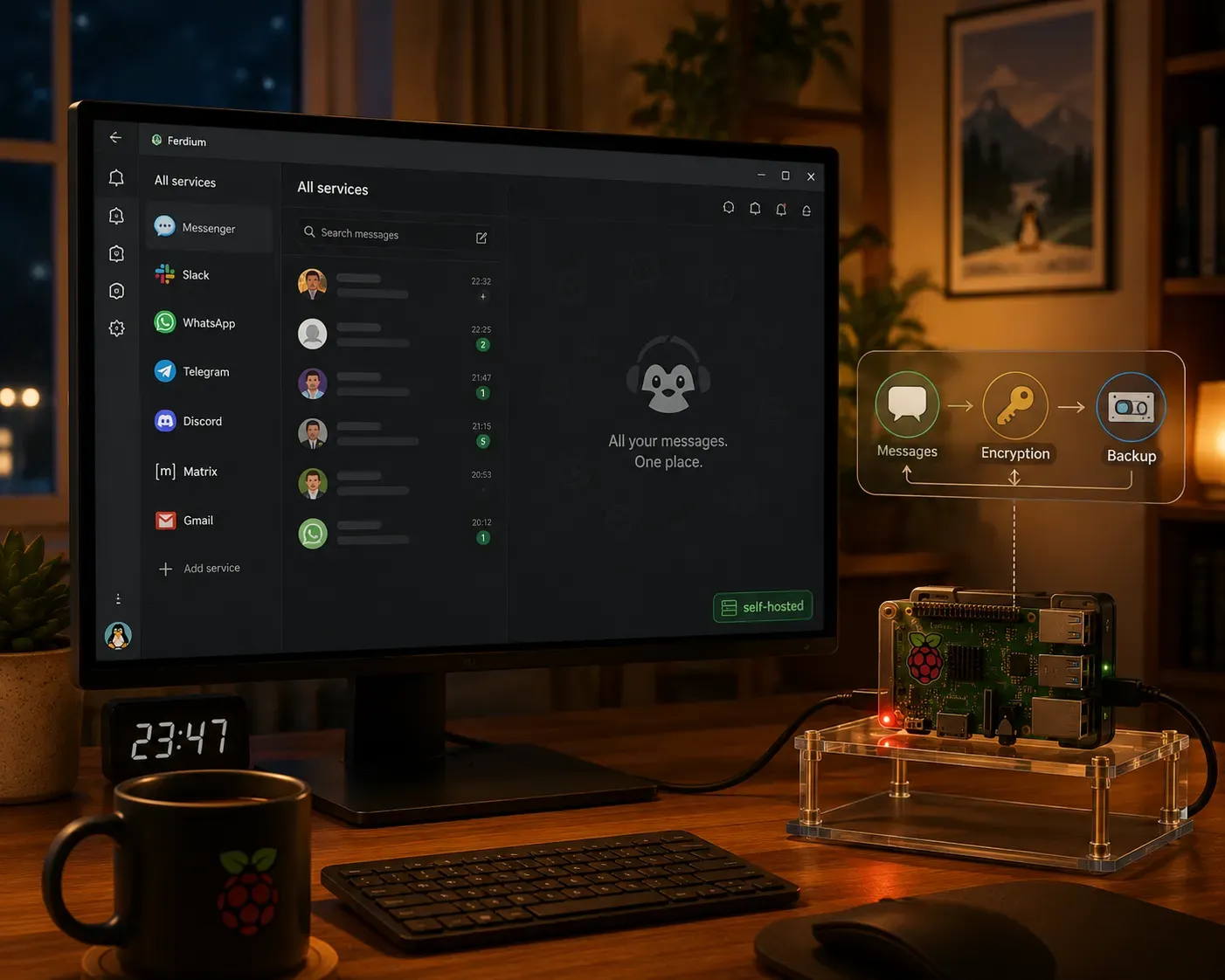 Your chats stay with the services. Your config and keys stay with you. Your backups stay on encrypted disk — image generated via ChatGPT
The honest threat-model conclusion
Here is what we have actually built, stated as plainly as possible.
When you run Ferdium with your own server on your Pi:
- Your chat content is between you and each service provider, exactly as it would be in a browser. The server is not in that path.
- Your configuration — which services you use, your workspace structure, your custom URLs — is on hardware you own, on an encrypted disk, behind your nginx, with your TLS, on your DDNS.
- Your account credentials are a password hash in a SQLite file you control. No third-party SSO, no OAuth callback to anybody else.
- With
CONNECT_WITH_FRANZ=false, no recipe-lookup metadata leaves your network. - If
api.ferdium.orgdisappears tomorrow, your setup keeps working.
What we have not intended to solve:
- The service providers still know everything they would normally know about your usage of their services. Ferdium is not a privacy layer for Slack — it’s a privacy layer for the aggregator. Slack still sees Slack things. WhatsApp still sees WhatsApp things. This is the same honesty we needed in Part 17 about DNS — we encrypted the leg we could encrypt; the rest is what the rest is.
- The embedded Chromium in Electron is a sizeable attack surface. Keep Ferdium updated. Watchtower (Part 11) takes care of the server image; the desktop app you update yourself or via your package manager.
- Master password protects the local Electron user-data, but it’s decrypted into memory when the app runs. Anyone with sufficient local access to your desktop has access to your session cookies in the usual way.
It is, in short, exactly the same trade we have been making across the whole series. We can’t encrypt the world. We can refuse to add new middlemen of our own, and we can keep the metadata that is under our control on hardware we trust.
Ferdium, on a self-hosted Ferdium-server, on a Raspberry Pi, behind nginx, with CONNECT_WITH_FRANZ off — is what that looks like for the messenger problem.
Your messengers. Your config. Your recipes. Your server. Your rules. No upsell modal in sight. 😊
This is part of my ongoing series: How I Run My Entire Digital Life on a Raspberry Pi. If you found this useful, consider following along — we’ve still got ground to cover.