
Part 20/B — How I Run My Entire Digital Life on a Raspberry Pi: Self-Hosted Spotify on a Raspberry Pi: Tagging Music
Table of Contents
Part 20/B: Tagging a Music Library with Beets
In Part 20/A I covered where music comes from: purchases, free downloads the artist offers, and openly licensed releases, all landing in an inbox folder. This part is what happens next. The files are playable but not trustworthy: every artist tags differently, some files have no cover art, some have a genre that means nothing, and the folder structure is whatever it happened to be. This is Beets, the librarian that won’t shelve anything until it’s catalogued correctly, and the component that fought back hardest. It ends with a glossary of the commands that actually mattered.
Everything here assumes the music is yours to keep: bought, offered for free by its owner, or openly licensed.
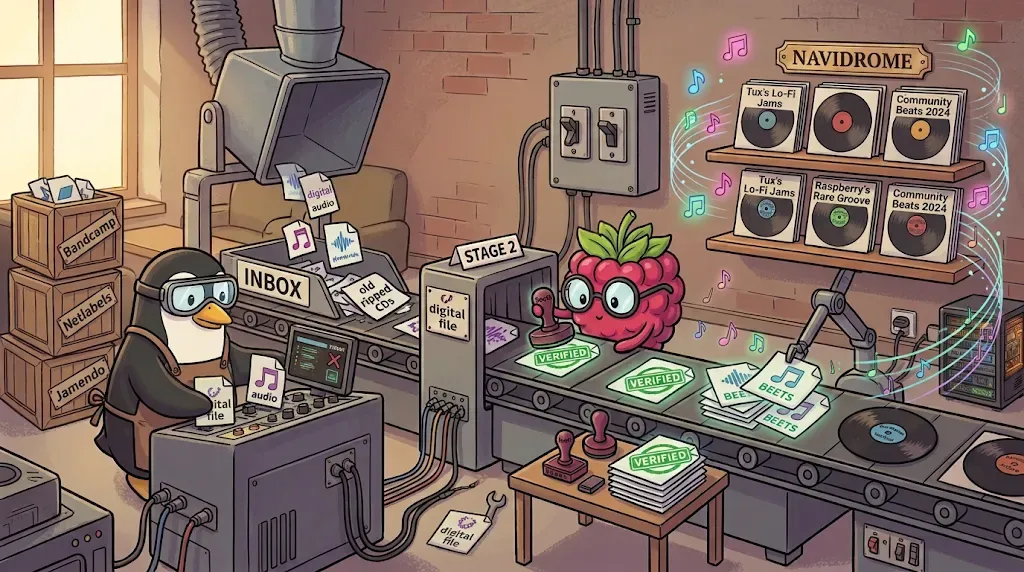 Legit crates in, obsessive librarian in the middle, tidy shelf at the end. — image generated via Nano Banana
What goes through Beets
Three kinds of material, each needing slightly different handling:
- Purchased and artist-offered downloads. Usually tagged well. Albums go in
inbox/albums/, loose tracks ininbox/singles/. - Openly licensed releases from netlabels, Jamendo or the Free Music Archive. Tagging quality varies the most here, and cover art is often missing.
- My older collection. Staged in
temp/existing/, imported as albums or, for loose singles, with-s, with the originals left untouched.
Why this has to happen before Navidrome
Navidrome, the server in Part 20/C, is read-only, deliberately and permanently. It has no tag editor and none is planned. It parses tags into its own database and serves from there: play counts and playlists live in its database, while artist, album and title live only in the file. Fix tags at the file level before Navidrome ever sees them, or don’t fix them at all. That’s the entire reason this is a separate stage.
The container, and a config you can copy
services:
  beets:
    image: lscr.io/linuxserver/beets:latest
    container_name: beets
    restart: unless-stopped
    environment:
      - PUID=1000
      - PGID=1000
      - TZ=Asia/Singapore
    volumes:
      - /mnt/storage/music/config/beets:/config
      - /mnt/storage/music:/data
    networks:
      pi_docker_network:
First, split the inbox in two. A folder of unrelated singles and a folder holding one album need different import modes, and you’ll see why shortly:
# mkdir -p /mnt/storage/music/temp/inbox/{albums,singles}/mnt/storage/music/config/beets/config.yaml:
directory: /data/library/beets
library: /config/musiclibrary.db

plugins: musicbrainz chroma fromfilename fetchart embedart scrub duplicates edit lastgenre replaygain ftintitle badfiles missing info web

paths:
  default: $albumartist/$album%aunique{}/$track $title
  singleton: $artist/Singles/$title
  comp: Various Artists/$album%aunique{}/$track $title

import:
  copy: yes
  move: no
  write: yes
  incremental: yes
  log: /config/import.log
  quiet_fallback: asis

match:
  strong_rec_thresh: 0.04
  max_rec:
    missing_tracks: medium

fetchart:
  auto: yes
  maxwidth: 1200
embedart:
  auto: yes
  remove_art_file: yes

lastgenre:
  auto: yes
  source: album
  force: no

replaygain:
  backend: ffmpeg

edit:
  itemfields: track title artist album genres year
  albumfields: album albumartist
What the interesting lines do:
musicbrainzis the metadata source itself. Without it Beets has nothing to match against, and nothing else in this config will warn you. The next section is the story of how I found that out.chromais the plugin doing the clever part. When a file’s tags are too thin or wrong to trust, it fingerprints the raw audio via AcoustID/Chromaprint and matches the recording itself, not the filename. It produces candidates through themusicbrainzplugin, so it’s inert without it.strong_rec_thresh: 0.04is Beets’ default, written out so it can’t change silently. It means a match has to be roughly 96% similar to be applied without asking. A looser value such as0.10accepts about 90%, and sooner or later that applies a plausible-but-wrong release, like the 2011 remaster when you own the 1994 original. A real example of what 96% looks like is in “Reading a real match” below.max_rec: missing_tracks: mediumis also a default written out. If a release has tracks your copy lacks, its recommendation is capped at “medium”, so quiet mode never applies it silently. A partial album is exactly that case.copy: yes,move: nois the safe day-one setting. Beets writes a corrected copy into the library and leaves your original where it was, so any mistake is a delete away from undone. More on when to flip it near the end.quiet_fallback: asisonly matters for unattended-qruns. When nothing matches confidently, it files the track using whatever tags it already has instead of leaving it stranded. That keeps the library growing, but it moves the review burden from before a file enters the library to after. Wrong tags get filed instead of skipped, and that includes real MusicBrainz matches that score below the strong cutoff.scrubstrips every tag Beets has no field for and rewrites the ones it does track. That’s fine by me, since it keeps files free of cruft, but anything exotic a source embedded is gone after import.fetchartandembedartfetch and embed art automatically, andremove_art_file: yesdeletes thecover.jpgonce it’s embedded, so the embedded image is the single source of truth. The cover art section below explains why, and what it costs.
War story: Beets matched nothing, because of one missing word
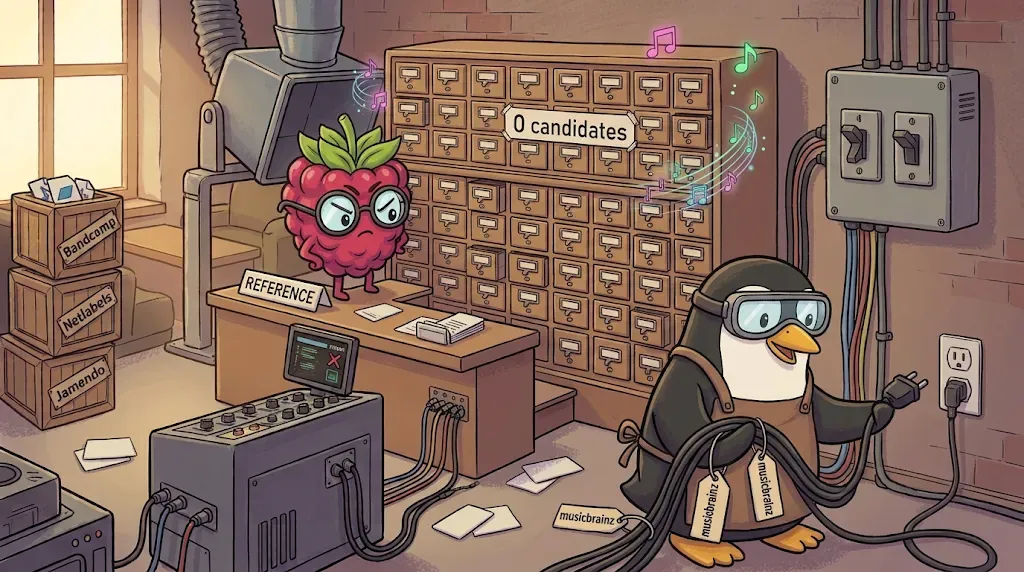 The librarian was ready the whole time. Nobody plugged in the catalog. — image generated via Nano Banana
For a long time Beets found nothing. Every album ended in No matching release found, every single in No matching recordings found, and I kept explaining it away: independent releases are missing from MusicBrainz, partial rips can’t match, the track count must be off. None of that was the cause.
The tell came from one verbose run on a 12-track album I knew was in MusicBrainz:
Loading plugins: badfiles, chroma, duplicates, edit, embedart, fetchart, fromfilename, ftintitle, lastgenre, missing, replaygain, scrub, web
...
Search terms: Stanton Warriors - The Warriors
chroma: musicbrainz plugin not enabled; acoustid matches will not produce candidates
Evaluating 0 candidates.
Two things stand out. musicbrainz isn’t in the list of loaded plugins, and no line anywhere says Beets queried MusicBrainz. It never asked. Since Beets 2.4 the MusicBrainz autotagger is a separate plugin. It’s in the default plugin list, but the moment you write your own plugins: line, you have to add it yourself. Beets’ own tagger guide says to check exactly this when you get “No matching release found” for an album you know is in MusicBrainz. My config had a custom plugins: line without it, so Beets had no metadata source at all, and chroma can only produce candidates through that plugin, which is what its log line says.
The fix is one word, already in the config above. Confirm it took:
# docker exec beets beet versionThat lists the enabled plugins and should now include musicbrainz.
The lesson
Before theorizing about why Beets finds nothing, run one import with -v and read three things: which plugins loaded, what Search terms it used, and whether it then actually queried MusicBrainz. Evaluating 0 candidates means nothing came back from any source, and if no search happened at all, no amount of tweaking the tags will help.
The importer in five minutes
 One folder, two fates: Beets will happily call a pile of singles an album unless you tell it not to. — image generated via Nano Banana
Everything else in this post is a variation on three ideas.
Album mode versus singleton mode
By default Beets treats every directory with music in it as one album. Point it at a folder with one album and it works. Point it at a folder of unrelated singles and it tries to match them all as a single bogus release, fails, and skips the lot. The fix is -s, which makes Beets treat every file independently. That’s why the inbox is split:
# docker exec -it beets beet import /data/temp/inbox/albums     # each album in its own subfolder
# docker exec -it beets beet import -s /data/temp/inbox/singles # every file on its own
Quiet and as-is
-q never prompts: it applies matches that are confident enough and defers the rest according to quiet_fallback. -A skips MusicBrainz entirely and trusts the tags a file already has. Use it when the source tags cleanly, which a purchased Bandcamp release usually does. It also skips the corrections and cover art a match would bring, so keep it for files you’re happy with exactly as they are.
The prompt
When there’s no confident match you get a menu, and the single capital letter in each option is the key:
No matching recordings found.
➜ [S]kip, Use as-is, Enter search, enter Id, aBort, eDit?
Careful with two of them: E is Enter search (retry MusicBrainz with different terms) and a capital D is eDit (open the tag editor). I pressed the wrong one more than once. For album imports the menu also offers as Tracks and Group albums, as Tracks splits the album back into singles, and Group albums reclusters by each file’s existing album tag, which is rarely what you want when the point is to fix those tags.
Look before you import
On the no-match screen Beets prints only the file path, because there’s no candidate to compare against, so there’s no switch that shows the current tags there. For a while I used eDit as a viewer: open the editor, see everything is fine, go back, press Use as-is. The info plugin does that job without the round trip. With info on the plugins line, preview a whole folder:
# docker exec beets sh -c 'beet info -i "artist,title,album,genres,year" /data/temp/inbox/singles/*'The sh -c makes the container’s shell expand the *, since your host shell doesn’t know the container’s paths. Test the glob on a few files first, and if a field name is rejected, drop -i to see every tag. If the tags look right, skip the prompts entirely:
# docker exec -it beets beet import -sA /data/temp/inbox/singles-A never tries a MusicBrainz match, so you also forgo the corrections and cover art a match would bring; keep it for files you’re happy with as they are. There’s also a config option, none_rec_action: asis under import:, that imports no-match files as-is even in an interactive session while still prompting for real candidates. The catch is that you stop seeing those files at all, so pair it with the preview.
War story: a container that kept retrying a command that couldn’t work
First boot looked healthy: a wall of Created database backup at: lines as Beets migrated its schema. Then this, forever:
error: unknown command 'web'
error: unknown command 'web'
error: unknown command 'web'
This isn’t a config mistake. LinuxServer’s beets image always tries to start beet web as its foreground service and healthcheck, whatever your config says. An open feature request asks for a CLI-only mode. A healthy boot looks like this instead:
 * Serving Flask app 'beetsplug.web'
 * Running on http://127.0.0.1:8337
Connection to localhost (127.0.0.1) 8337 port [tcp/*] succeeded!
[ls.io-init] done.
The fix is one word, web, on the plugins line, already in the config above. It binds to 127.0.0.1 inside the container only, so nothing is exposed unless you publish the port.
It’s also useless for what I wanted next. beet web is a read-only browse-and-play interface, by its own documentation: it can’t tag, edit or trigger an import. I wanted a phone-friendly way to say “import what I just downloaded” without SSH, and the options were a cron job or a webhook container. A webhook means another always-on container whose whole job is turning an HTTP request into shell execution on the Pi, which is a much bigger blast radius than the convenience is worth. So the choice was cron or nothing. Cron is the lighter of the two, and this is the host crontab line I’d use. It needs the two-folder split from earlier, and I’ve marked the one flag in it I haven’t tested:
*/15 * * * * docker exec beets sh -c 'beet import -q --quiet-fallback skip --incremental-skip-later /data/temp/inbox/albums; beet import -qs --quiet-fallback skip --incremental-skip-later /data/temp/inbox/singles'--quiet-fallback skip overrides quiet_fallback: asis for these runs, so anything Beets isn’t sure about waits in the import log instead of being filed, and --incremental-skip-later stops those skips from being recorded, so your next manual import still offers them. Both flags are in Beets’ CLI reference, but I haven’t run either.
But do your imports by hand
I’d put cron a distant second, and this post has already shown why. Quiet mode only applies strong matches, and quiet_fallback: asis files everything below that with its old tags and no review. The 87% album in the next section would have gone into the library unreviewed, wrong edition and all. Genres, years, collaboration credits and artist spelling are decisions that only come up in an interactive session, and each one of them became a cleanup job when I got it wrong. A timer can also fire while a download is still arriving and import half a file. Run the import yourself right after you download something, while you remember what it is. If you do add the cron job later, keep it on skip, and read the log.
Reading a real match
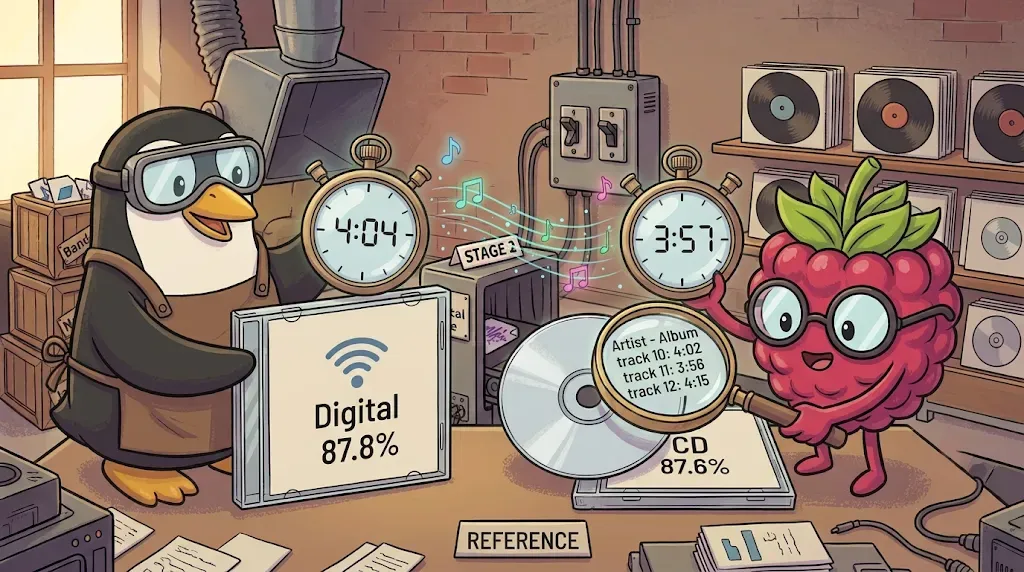 When the percentages tie, the stopwatch decides. — image generated via Nano Banana
Once the plugin was on, the first album I ran gave me a real candidate screen for the first time. A 12-track album, with the two best candidates:
Candidates:
1. 87.8% Stanton Warriors - The Warriors
          MusicBrainz, Digital Media, 2011, XW, Punks, PUNKSD001
2. 87.6% Stanton Warriors - The Warriors
          MusicBrainz, CD, 2011, GB, Punks, PUNKSCD001
The percentages are nearly tied, so they can’t decide it. The ≠ lines can. Candidate 1 wanted track 11 to run 4:04 where my file runs 3:56, an 8-second gap that means a different edit or master, and it added “(radio edit)” to two titles. Candidate 2’s durations matched within about a second (Leader 3:36 against 3:36, Ouepe Ouepa 3:20 against 3:20). Same album, different editions, and only the durations tell you which one your files came from. My rule: when scores are within a point or two, compare the lengths. Equal or within a second means the same master, and several seconds off means another edit.
Neither candidate reached the 96% “strong” cutoff, which is why this album needed a human. In quiet mode anything below strong falls to quiet_fallback, and with asis that means the album would have been filed with its old tags, unseen. M shows more candidates and A applies one. On a matched import, applying does more than fix tags: fetchart fetches cover art, embedart embeds it, lastgenre fills a genre, and replaygain computes loudness, which can be slow on a Pi.
Traps for loose singles
”No matching recordings found” needs a real check before you blame the database
For a long time every file ended up here and I blamed MusicBrainz coverage, when the cause was the missing plugin above. With it enabled, a no-match is worth a minute of checking: search musicbrainz.org yourself. If the release is there, the problem is the search, so use enter Id and paste the release URL. If it genuinely isn’t there, which can happen with small independent releases, skip matching with -A, or let quiet_fallback: asis file it with the tags it has.
”Skipped 1 paths” with no explanation is incremental history
With incremental: yes, Beets remembers every path it has been shown, including ones you skipped or later deleted, and silently declines to show them again. I spent a while convinced a file was unmatchable when Beets had simply never looked:
No files imported from /data/temp/inbox/singles/Night Rollers.opus
Skipped 1 paths.
-I ignores that history for one run. And note that beet remove doesn’t clear it, which is why re-importing something you just removed can look like it does nothing.
Two more things trigger the same message. First, the history stores the original path, so while Beets is copying (the day-one copy: yes) the source files stay behind in staging and every later run over the same folder skips all of them. A run that ends with No files imported from /data/temp/existing and Skipped 23 paths usually means all 23 were handled before. Check one with beet list title:"..." before assuming anything is wrong, and if they’re already in the library and only a field is missing, don’t re-import: fix it with beet modify. Second, by default Beets also records skip decisions, so a file you skipped, or one a quiet run skipped for you, is never offered again. -I re-offers everything under the path, including what’s already imported, which can mean duplicate prompts for albums already in the library, so point it at the narrowest folder you can. To keep a quiet pass’s skips visible to a later interactive pass, add --incremental-skip-later so they aren’t recorded.
One more -s warning while we’re here: it treats every file under the path as a single. Point it at a folder of loose singles, not at a tree that contains albums, or those albums’ tracks get filed under Singles/.
The singleton path template needs the field you can actually edit
My first paths.singleton used $albumartist. I’d correct artist in the editor, the tag would change, and the file would stay in the old folder, because the template was built from a different field the editor never showed me. For a standalone single, “album artist” isn’t a meaningful concept anyway. Key the template to $artist.
The genre versus genres trap
 Same name, different drawer. — image generated via Nano Banana
A file arrives with a generic or wrong genre: a catch-all, an Electronic on something obviously drum and bass, or nothing useful. Any source can hand you a bad genre. I fixed it by typing the right genre into the import editor, then checked with beet list -f '$genre', which reported success. The actual audio file, checked with ffprobe, still carried the old value.
Current Beets has two genre fields sharing a display alias:
# docker exec beets beet list -f '$id: genre=[$genre] genres=[$genres]' title:"Night Rollers"7: genre=[drum and bass] genres=[Electronic]genre is the legacy field, still writable, and it held every manual correction. genres is the multi-value field Beets writes into the file’s tags. Every edit I made landed in the one that doesn’t reach the file. A separate wrinkle: the no-match editor screen never showed me a genre field at all, whatever my itemfields said, so I stopped fighting it and fixed genre afterward:
# docker exec -it beets beet modify genres:Electronic genres="drum and bass" -mBeets shows a diff and asks before touching anything. Queries are substring matches, so genres:Electronic would also catch Electronic Dance; read the diff.
One spelling tip
lastgenre normalizes against a whitelist, and Beets’ bundled list spells it drum and bass, with “and,” not DnB or Drum & Bass. Type it that way when you set it by hand, so manual and automatic entries don’t fragment your library into three spellings of one genre.
The lesson generalizes
When a command reports success and a downstream check still shows the old value, don’t trust the display template. Query the raw field directly.
Setting a genre for a whole import
When a whole folder is one genre and the files won’t match anywhere, typing the genre into the editor for every track gets old fast. The import command can do it for you:
# docker exec -it beets beet import -s --set genres="breaks" "/data/temp/existing/Breaks"--set field=value assigns that field to everything imported in the run, so it’s one command per genre folder. Use -s here only because these are loose singles, and see the incremental section above for why not to point it at a tree that contains albums. Use genres, not genre, for the reason in the trap above.
The editor will not show it, and that’s expected
Beets applies --set after you’ve made your choice at the prompt, so if you open the editor to fix an artist or a title, genres: still shows as an empty list:
genres: []Leave it alone. The genre is added automatically when the import is applied. It’s easy to doubt this, so check it with the same count used in the audit below, once before the import and once after:
# docker exec beets beet list -f '$genres' | sort -f | uniq -c | sort -rnThe breaks line should grow by exactly the number of tracks you imported. I used this on singles. For album imports, check the per-track values too, since maintainers describe --set as applying at album level there. Match the spelling your library already uses, so you don’t create another variant of the same genre.
When you’ve forgotten how you spelled a genre
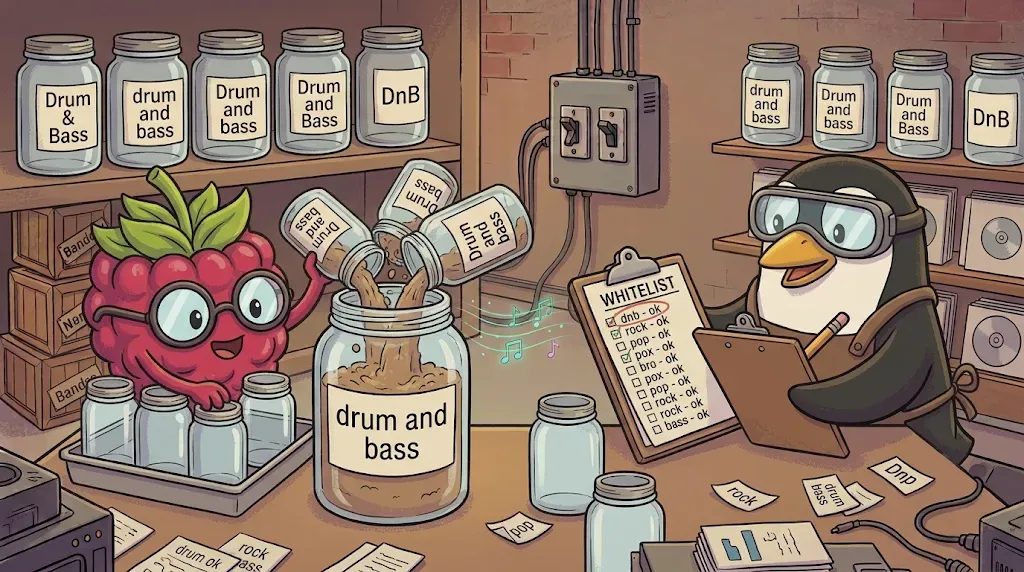 Many spellings, one jar. — image generated via Nano Banana
Genres are free text, and nothing in this pipeline polices them. An as-is import keeps whatever the source said, and anything you type is exactly as consistent as you were that day. After enough imports the same genre exists under several spellings, and anything that groups by genre, such as a client’s genre browser, shows them as separate entries. I haven’t checked whether Navidrome folds case itself.
The audit is one pipeline. It reads every track’s genres, counts each distinct value, and sorts by popularity:
# docker exec beets beet list -f '$genres' | sort -f | uniq -c | sort -rnsort -f ignores case while sorting, so Breaks and breaks land next to each other, and uniq -c still counts them separately, which is what makes a spelling split visible. Blank lines are tracks with no genre at all. Mine looked like this (trimmed):
     73 Breakbeat
     50 Breaks
     28 Drum & Bass
     25 drum and bass
     17 Soundtrack
     12 breaks
      8 Drum and bass
      4 soundtrack
      6 Other
      1 Drum and Bass
      1 Breakz
Four spellings of drum and bass, three of breaks, two of soundtrack, and a placeholder. Two notes. A track with several genres prints them joined by ; and counts as its own line, so split on ; first if you want per-genre totals. And run the same count against the legacy $genre field once, because anything typed into the wrong field, as in the trap above, shows up there and nowhere else.
Pick one spelling per genre
Beets’ own lastgenre whitelist is a sensible reference, and it spells it drum and bass, with “and” and not &. You can search it from inside the container, using the path from your own verbose log (it varies by image version):
# docker exec beets grep -n -i "break" /lsiopy/lib/python3.12/site-packages/beetsplug/lastgenre/genres.txtMerge with modify
Queries ignore case but can’t treat & as and, so drum and bass needs two commands:
# docker exec -it beets beet modify genres:"drum and bass" genres="drum and bass"
# docker exec -it beets beet modify genres:"drum & bass" genres="drum and bass"
The first catches drum and bass, Drum and bass and Drum and Bass. The second catches the & variant. Each shows a diff and asks before changing anything, and the diff will include tracks that already have the right spelling, which is harmless. Genres aren’t part of any path template, so nothing moves. Only tags are rewritten.
Queries are substring matches, so read the diff every time. genres:break would also catch Breakbeat, which is why I’d run genres:"breaks" and genres:"breakz" separately, and whether Breakbeat is the same genre as Breaks is a taste call, not a technical one. An anchored regex query is the stricter option, but I haven’t tested it on this multi-value field.
Then rerun the count. Merging the four drum and bass spellings above should give a single line of 62 (28 + 25 + 8 + 1) and nothing else that looks like it. The placeholder, Other here, is worth setting properly rather than merging.
Prevention
lastgenre normalizes the genres it fetches itself, and as far as I can tell it leaves what you typed alone, so it won’t tidy this for you. The habit that works is deciding the spelling once, then using it everywhere: in the editor, in --set genres=..., and in modify.
Fixing things after the fact
Retagging
beet modify <query> field=value edits items already in the library, and beet edit <query> reopens the editor on them. If the change affects the file’s computed path, Beets says so in the prompt and relocates the file in the same step:
Really modify, move and write tags? (Yes/no/select)That single confirmation both corrects the tag and moves the file, so you don’t need a separate beet move.
Queries are case-insensitive, and there’s no setting to change that
I ended up with both Kestrel Lane and KESTREL LANE folders because two files disagreed on capitalization. A plain query like artist:"KESTREL LANE" matches both, and it’s a substring match, so it would also catch Kestrel Lane & Moss. To match exactly that artist in any capitalization, use an anchored regex, preview it, then normalize:
# docker exec beets beet list -f '$albumartist | $artist | $title | $path' artist::'(?i)^kestrel lane$'
# docker exec -it beets beet modify artist::'(?i)^kestrel lane$' artist="Kestrel Lane"
# docker exec -it beets beet modify -a albumartist::'(?i)^kestrel lane$' albumartist="Kestrel Lane"
Singles are filed by artist and albums by albumartist, so both need fixing. Each modify shows a diff and moves the files into one folder. To tell two folders apart by case on disk, match on the path instead, which is case-sensitive on Linux:
# docker exec beets beet list -f '$path' path::KESTRELOnce MusicBrainz is enabled, matched imports take its spelling of the artist, so this drift mostly comes from as-is imports.
Don’t mv files yourself
Beets stores every file’s location in its database. Move a file by hand and the database still points at the old path, and beet write, later imports and duplicate detection get confused in ways that surface weeks later. Fix the tag and let Beets move the file.
Redoing an import cleanly
# docker exec -it beets beet remove -d artist:"Kestrel Lane" title:"Night Rollers"
# docker exec -it beets beet import -sI /data/temp/inbox/singles/"Night Rollers.opus"
remove -d deletes the database record and the filed copy. Without -d the stale file stays on disk. And -I is needed, for the reason in the previous section.
A policy decision worth making once
Collaboration credits split folders: Kestrel Lane & Moss and Kestrel Lane are different strings, so they become different directories. I keep the primary artist in artist and put the collaborator in the title, for example Night Rollers (feat. Moss). Navidrome’s search covers titles, artists and albums, so the credit stays findable by typing it, though browsing by artist page won’t show it. Check that in your own client. The alternative, keeping full credit in artist, is just as valid. The point is to choose one rule instead of deciding per track.
Cover art: who fills it, and what overwrites what
 Navidrome checks the folder before the file, so tidy one of them away. — image generated via Nano Banana
Two things can supply artwork, and they can disagree. Beets is the one that writes art into your library. Navidrome only reads it and never writes to your music. So the question is really what Beets does, and then which image Navidrome prefers when it finds more than one.
Why some files never got any
fetchart is enabled with auto: yes, and for a long time it did nothing for me. By its documentation, remote sources (Cover Art Archive, iTunes, Amazon and the rest) are only queried when an import applied a MusicBrainz match; for as-is imports and -A, Beets looks for art only in the local folder. Nothing was matching, because of the missing plugin, so fetchart never got to search. With MusicBrainz enabled, matched imports should now fetch art at import time. As-is imports still won’t, so the backfill below stays useful.
What happens to art that’s already embedded
Say a file already has art baked in, such as a generic logo or a low-quality image. Beets doesn’t look at that image when it decides what to do. It tracks art as a “file on the side” (cover.jpg in the album folder), not as the picture inside the tags, and embedart only embeds once an album has such a file. So on an as-is import with no cover.jpg, there’s nothing to embed and the existing embedded image is simply left alone. Later, if you backfill with fetchart and embedart, Beets does overwrite it. The embedart docs mention being “reluctant to overwrite existing embedded art” as the reason for two safeguards, and neither helps when you’re replacing a bad image on purpose. ifempty: yes refuses to touch any file that already has art. compare_threshold only replaces art that’s similar to what’s there (and needs ImageMagick), while a real cover can look nothing like the generic image it replaces. Leave both at their defaults for a deliberate replacement. If you’d rather just remove a bad embedded image, beet clearart <query> strips it.
The backfill is two commands, and the standalone fetchart doesn’t have the as-is restriction:
# docker exec beets beet fetchart -f artist:"Kestrel Lane"
# docker exec beets beet embedart artist:"Kestrel Lane"
fetchart downloads the image; embedart writes it into the file’s tags. And here’s a trap: the flags don’t mean the same thing across the two commands. fetchart -f is force, but embedart -f is file, a specific image to embed. I ran embedart -f artist:... and got error: image file /artist:... not found. Leave the flag off. Don’t be surprised if a forced search still comes up empty for obscure releases.
What Navidrome prefers
By default Navidrome looks for album art in this order: an image file named cover, folder or front in the album folder, then an image embedded in the files, then an external service (currently Last.fm, per its docs, and it needs an API key you’d have to set up), then its blue-vinyl placeholder. Notice that the folder image comes first. fetchart saves a cover.jpg into the album folder by default, so a bad cover.jpg can beat a good embedded image sitting right next to it. That’s why the config above sets remove_art_file: yes:
embedart:
  auto: yes
  remove_art_file: yes
remove_art_file deletes the album art file after it has been embedded, so the embedded image is the only one left and Navidrome has nothing to prefer over it. The tradeoff is that any other player relying on a cover.jpg in the folder loses it. Try it on one album first, and check whether a manual beet embedart run removes the file as well as the automatic one. The alternative is to leave remove_art_file off and put embedded first in Navidrome’s ND_COVERARTPRIORITY, which I cover in Part 20/C.
Our config sets auto: yes for both plugins, remove_art_file: yes on embedart and maxwidth: 1200 on fetchart, so everything else here is a default. maxwidth needs ImageMagick or Pillow, and I haven’t checked what the container ships, so if images aren’t being resized, look there first. And Navidrome caches artwork, so after changing art it needs a rescan or its artwork refresh command, also covered in Part 20/C.
Stop storing everything twice, but only when you trust it
Once the workflow has proven itself on a few batches, copy: yes means every file exists twice. To switch:
import:
  copy: no
  move: yes
# docker restart beets
# docker exec beets beet config | grep -A 6 "^import:"Confirm the running process picked it up. Two caveats. First, this only affects imports from now on. Everything already in the library stays put, and the leftover originals in the inbox are now redundant. Delete those by hand, in small batches, after verifying the library copy. Check with beet stats before and after a cleanup pass, and verify the field that matters rather than the one that displays convincingly. Second, with move: yes there’s no inbox copy to fall back on, so keep a backup of anything you paid for, and don’t flip this on day one. Put -c back on any run over irreplaceable material, since it forces copy for that run and takes precedence over move: yes.
What move leaves behind
 Beets moves the music. The paperwork stays behind. — image generated via Nano Banana
move: yes moves the audio files Beets imports, and it treats the cover image as album art: it moves the image along, embeds it, and remove_art_file: yes then deletes it. So the cover doesn’t linger. What does stay in the source folder is everything Beets has no concept of: old .m3u playlists, .nfo files, rip logs, whatever else came in the download. Beets only cleans up folders that end up empty, so a folder with leftovers sticks around, and clearing it out is manual. Navidrome ignores those files, and an old .m3u is useless anyway, because it points at paths that no longer exist.
Before you delete the leftovers, check the cover embed. remove_art_file deletes the image after embedding, so if the embed had silently failed, the art would now exist nowhere. has_cover_art is a query field in recent Beets versions, and I used it two ways on one album: false returned nothing and true returned every track.
# docker exec beets beet list -f '$title' album:"Your Album" has_cover_art:false
# docker exec beets beet list -f '$title' album:"Your Album" has_cover_art:true
If the first prints nothing and the second lists every track, the art is embedded. Also confirm the track count matches what was in the source folder, then remove the leftover folder:
# ls -la "/mnt/storage/music/temp/inbox/albums/<album folder>"
# rm -r "/mnt/storage/music/temp/inbox/albums/<album folder>"
The ls first is the point: you should see only extras you recognize, like .nfo, .m3u and logs, and no audio files. Only delete once you’ve confirmed the library copy is complete, and keep a backup of anything you can’t get again. If the .nfo has provenance you care about, copy it into the licenses/ folder from Part 20/A first. Community plugins such as copyartifacts and filetote can carry extra files along with an import; they don’t ship with Beets and I haven’t tried them.
Beets command glossary
The commands that actually mattered, one line each.
beet import <path>— imports a folder as an album, grouping its files together; use it for real albums.beet import -s <path>— imports every file as an independent single; use it for any folder of loose singles.beet import -q <path>— runs quietly, applying confident matches and deferring the rest perquiet_fallback; use it for unattended runs once you’ve seen how your files score.beet import -A <path>— skips MusicBrainz and trusts the tags a file already has; use it for sources that tag cleanly.beet import -c <path>— forces copy for this run, overridingmove: yes; use it on irreplaceable material after switching to move, and skip it whilecopy: yesis your default.beet import -I <path>— ignores the incremental history for one run; use it to re-import a path Beets already saw.beet import --incremental-skip-later <path>— stops skip decisions from being recorded; use it on quiet passes whose skips you’ll review by hand later.beet import --set genres="<genre>" <path>— assigns a field to everything imported in that run, applied after your choices; use it to give a folder of singles one genre.beet list -f '<format>' <query>— prints a read-only listing in a custom format; use it to check real stored values before trusting a display.beet list -f '$genres' | sort -f | uniq -c | sort -rn— counts every distinct genre spelling in the library; use it to audit genres before unifying them.beet modify <query> field=value— edits a field on imported items and relocates them if the path changes; use it to fix a wrong artist or genres afterward.beet modify -a <query> field=value— does the same at album level; use it to fixalbumoralbumartistfor a whole album at once.beet edit <query>— reopens the interactive editor on library items; use it to re-correct a mistake.beet remove -d <query>— deletes the database record and the file; use it to undo an import before redoing it.beet move <query>— relocates a file to match its current tags; use it to fix a stale path.beet write <query>— pushes database values into the file’s tags; use it to reconcile a database and file mismatch.beet fetchart -f <query>— forces a remote search for cover art; use it to backfill art that import never fetched.beet embedart <query>— embeds the associated art into the file’s tags; run it afterfetchart, and leave off-f, which means a file path here.beet clearart <query>— strips embedded images from matching items; use it to remove a bad embedded image.beet list <query> has_cover_art:false— lists tracks with no embedded art (truefor the opposite); use it to confirm the embed worked afterremove_art_filedeleted the image.beet info -i '<fields>' <path>— dumps a file’s current tags without importing, and needs theinfoplugin; use it to preview a folder before choosing-A.beet stats— prints library totals; use it to confirm an import added what you expected.beet fields— lists every field name Beets recognizes; use it to confirm a field exists before querying it.beet config— dumps the fully merged, active configuration; use it to rule out a stale config after editing.beet version— lists Beets’ version and the enabled plugins; use it to confirmmusicbrainzactually loaded.beet -v import <path>— runs a verbose import that shows plugins loaded, search terms and candidates; use it to find out why Beets found nothing.
What’s next
One last thing on the config. Keep copy: yes while you’re learning, because it makes every mistake in this post a delete away from undone. Once you’re familiar with Beets and these commands, and you’ve seen how your own files score, change it to copy: no and move: yes, as described in “Stop storing everything twice, but only when you trust it,” so every file stops existing twice. Keep a backup of anything irreplaceable, and add -c to runs over it.
The library is organized, tagged and consistent enough to trust. Part 20/C hands it to Navidrome, which does the least work and causes the fewest problems of anything in this series. After the above, that’s exactly what I wanted from the finish line.